
How to Secure Coin Wallet with a Thetis FIDO2 Security Key
Crypto security is not only about choosing the right wallet. It is also about protecting the actions that matter most: sending funds, exporting private keys, and keeping unauthorized users away from your assets.
Coin Wallet (https://coin.space/) is a self-custodial multicurrency crypto wallet that supports Bitcoin, Ethereum, XRP, Solana, Monero, and many other networks. Because it is self-custodial, your private keys are created and stored on your device, not on a company server. Coin Wallet also supports FIDO-certified hardware security keys as a second factor for sensitive actions.
That means you can add a Thetis FIDO2 Security Key to your Coin Wallet setup for an extra layer of physical protection.
Why Use a Hardware Security Key with Coin Wallet?
In crypto, many attacks do not break encryption. They target the user. Phishing pages, fake emails, malicious links, device theft, and recovery phrase scams are all designed to get access to something reusable.
A hardware security key helps reduce that risk because it requires a physical device to approve certain actions. With Coin Wallet, the hardware key does not store your crypto, private keys, or recovery phrase. Instead, it works as a hardware-based second factor that confirms your presence when sensitive actions are performed. citeturn666030view0
This is especially useful because blockchain transactions are generally irreversible. Once funds are sent to the wrong address, there may be no way to recover them. Adding a Thetis FIDO2 Security Key gives you another checkpoint before assets move.
What Is a Thetis FIDO2 Security Key?
A Thetis FIDO2 Security Key is a physical authentication device that supports modern FIDO2 and U2F standards. It can be used to add hardware-based two-factor authentication to supported platforms and services.
For crypto users, the key point is simple: the Thetis FIDO2 Security Key does not replace your wallet, your private keys, or your recovery phrase. It adds a physical confirmation step. Thetis explains that its FIDO2 key does not store blockchain wallet private keys; it acts as a hardware-based second factor for enhanced security.

Before You Start![]()
Before connecting a Thetis FIDO2 Security Key to Coin Wallet, make sure you have the following:
-
A Coin Wallet account already set up
-
Your 12-word recovery phrase stored safely offline
-
A compatible Thetis FIDO2 Security Key
-
A device that supports your key’s connection method, such as USB, USB-C, or NFC
-
An updated Coin Wallet app, desktop app, or supported browser
Coin Wallet supports hardware security keys over transport methods such as USB, NFC, and BLE, as long as your computer, phone, or browser supports the same connection method.
Coin Wallet’s support page lists the minimum supported environments, including Chrome 67, Firefox 60, Safari 13, Android 8.0, iOS 13.3, Windows 10, macOS 10.13, Ubuntu 20.04, and Fedora 32.
Step 1: Choose the Right Thetis Key for Your Device
The best security key is the one that works smoothly with the device you use every day.
For example:
-
Use a USB-A Thetis key if your computer has a standard USB-A port.
-
Use a USB-C Thetis key if your laptop, Android phone, iPad, or newer desktop setup uses USB-C.
-
Use an NFC-compatible Thetis key if you want tap-to-authenticate support on a compatible mobile device.
Before setup, confirm that your device and Coin Wallet environment support the connection method you plan to use.
Step 2: Open Coin Wallet
Open Coin Wallet on your preferred device.
You can use Coin Wallet through its mobile app, desktop app, or web wallet, depending on your setup. Coin Wallet is available across mobile and desktop platforms, including iOS, Android, Windows, Linux, and macOS.
Make sure your wallet is unlocked and that you are using the device where you want to register the Thetis security key.
Step 3: Go to the Security Key Setup Area
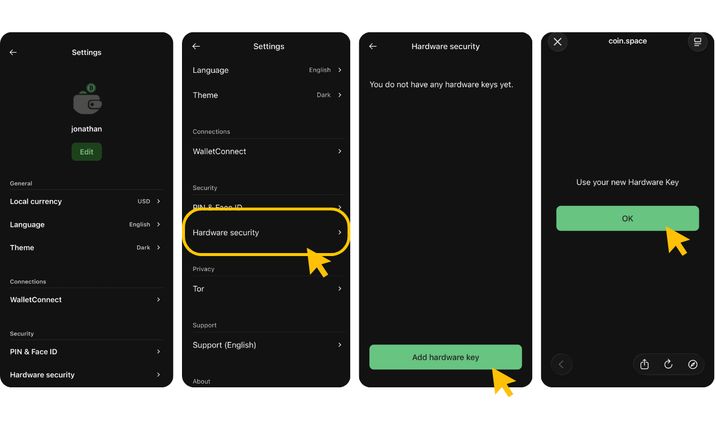
In Coin Wallet, open the wallet security settings and look for the hardware security key option.
Coin Wallet’s own setup guide explains that users can register a FIDO2 or U2F hardware key, then use it to protect sensitive actions such as sending transactions or exporting private keys.
Follow the on-screen instructions in Coin Wallet to begin registering your key.
Step 4: Connect Your Thetis FIDO2 Security Key
When Coin Wallet prompts you to connect a hardware security key, insert or tap your Thetis key depending on the model:
-
For USB or USB-C models, plug the key directly into your computer or mobile device.
-
For NFC models, hold the key near the NFC area of your phone.
-
If your key has a touch sensor, press or touch it when prompted.
Coin Wallet will guide you through the registration process. Once the key is successfully added, it should appear in the wallet’s security key section.
Step 5: Test the Setup
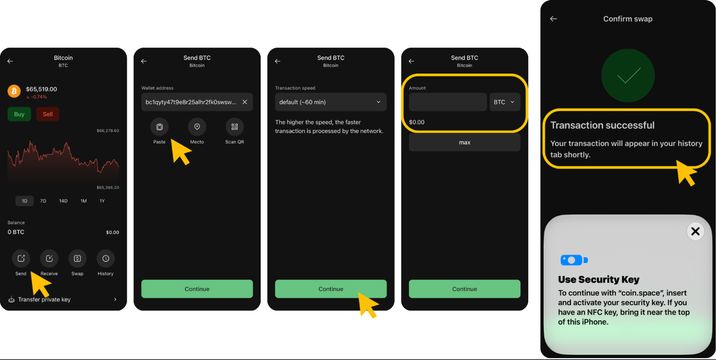
After registering your Thetis FIDO2 Security Key, test it with a low-risk action.
Coin Wallet’s guide recommends testing the setup by sending a transaction. The normal send flow remains the same: choose the crypto asset, enter the recipient address and amount, then confirm the transaction. The additional difference is that the hardware security key is used to approve the action.
For safety, start with a small amount when testing any new wallet security setup.
What the Thetis Key Protects
Once connected to Coin Wallet, your Thetis FIDO2 Security Key helps protect sensitive wallet actions.
This may include:
-
Sending crypto
-
Exporting private keys
-
Approving high-risk wallet operations
-
Reducing risk if someone gains temporary access to your unlocked device
The security key is especially useful because it adds a physical requirement. Even if someone has your phone or computer, they still need the registered Thetis key to complete protected actions.
What the Thetis Key Does Not Replace
A FIDO2 security key is a strong security upgrade, but it is not a replacement for basic crypto safety.
Your Thetis key does not replace:
-
Your Coin Wallet recovery phrase
-
Secure offline backup practices
-
Careful transaction review
-
Address verification
-
Device security
-
PIN or biometric protection
Coin Wallet’s guide makes an important distinction: a hardware security key is not the same as a hardware wallet. A security key confirms a sensitive action, while a hardware wallet can hold and sign crypto transactions directly.
Your recovery phrase remains the master backup for your wallet. Keep it offline, private, and never share it with anyone.
Best Practices for Using Thetis with Coin Wallet
For stronger protection, consider these best practices:
Register Two Security Keys
A single security key can become a single point of failure. Coin Wallet recommends using two keys: one primary key and one backup key stored safely in another location. citeturn666030view0
Store Your Backup Key Separately
Do not keep your backup key in the same bag, desk drawer, or safe as your primary key. If both are lost together, the backup does not help.
Keep Your Recovery Phrase Offline
Your recovery phrase should be written down and stored securely offline. Never save it in cloud storage, email, chat apps, screenshots, or notes apps.
Review Every Transaction Carefully
A hardware key adds approval protection, but it does not know whether an address is correct. Always verify the recipient address, amount, and network before confirming.
Remove Lost or Stolen Keys
If a registered key is lost or stolen, remove it from your Coin Wallet security settings and register a replacement.
Troubleshooting Tips
If Coin Wallet does not detect your Thetis key, try the following:
-
Confirm that your browser, operating system, or Coin Wallet app version supports hardware security keys.
-
Plug the key directly into your device instead of using a hub.
-
Try another USB port.
-
For NFC, move the key slowly near the top or back of your phone until it registers.
-
Make sure NFC is enabled on your phone.
-
Avoid private or incognito browser windows if WebAuthn does not work properly.
-
Test the key with another supported FIDO2 service to confirm the key is working.
Coin Wallet notes that device compatibility depends on the transport method your key uses, such as USB, NFC, or BLE.
Final Thoughts
Self-custody gives crypto users control, but control also comes with responsibility. Coin Wallet already keeps private keys on the user’s device and supports hardware-grade security for sensitive actions. Adding a Thetis FIDO2 Security Key strengthens that setup by requiring a physical confirmation before important wallet operations can be completed.
For users who want a simple, practical way to improve Coin Wallet security, pairing Coin Wallet with a Thetis FIDO2 Security Key is a smart step.
Your crypto stays in your wallet. Your recovery phrase stays offline. Your sensitive actions get an extra layer of hardware-based protection.
Frequently Asked Questions
Does Coin Wallet support FIDO2 security keys?
Yes. Coin Wallet supports FIDO U2F and FIDO2 hardware security keys for additional authentication. Users can register a compatible security key to authorize sensitive wallet operations, including sending cryptocurrency transactions.
Can I use a Thetis FIDO2 Security Key with Coin Wallet?
Thetis FIDO2 Security Keys support FIDO-based hardware authentication. They are designed to work with services that support the relevant standards, including Coin Wallet's hardware security key feature, subject to device and model compatibility.
How do I add a hardware security key to Coin Wallet?
Open Coin Wallet, navigate to Settings, select Hardware security, and choose Add hardware key. Connect your compatible Thetis FIDO2 Security Key using USB or NFC, then follow the on-screen instructions to complete registration.
Does a Thetis FIDO2 Security Key store my cryptocurrency?
No. A Thetis FIDO2 Security Key does not store cryptocurrency, wallet recovery phrases, or blockchain private keys. It acts as an additional hardware authentication factor. Your cryptocurrency remains controlled by the private keys associated with your Coin Wallet.
What happens if I lose my Thetis Security Key?
A lost security key cannot simply be duplicated. Registering a second compatible security key in advance provides a backup authentication method. Keep your Coin Wallet recovery phrase safely stored offline and follow Coin Wallet's official recovery guidance if necessary.
Is a FIDO2 security key the same as a crypto hardware wallet?
No. A FIDO2 security key provides hardware-based authentication for supported applications. A cryptocurrency hardware wallet is designed to manage private keys and sign blockchain transactions. These devices serve different security purposes.